SWOv git · main
SWOv - window overview for sway
C 91.5% Markdown 7.6%git clone https://git.christianimmanuel.de/sway/SWOv.gitwget https://git.christianimmanuel.de/sway/SWOv/archive/SWOv.tar.gz| b8f9301 | Add workspace naming button And stuff | Christian Immanuel · 19 days ago |
| - | .gitignore | 5 B |
| - | config.example | 9.7 KB |
| - | Makefile | 2.8 KB |
| - | README.md | 23.7 KB |
| - | screenshot.png | 197.4 KB |
| - | sw_config.example | 2.4 KB |
| - | sw_theme.h | 7.9 KB |
| - | swov.c | 275.9 KB |

README.md
swov
A window and workspace overview for Sway, drawn with SDL3. Each workspace is a tile; inside it, windows sit where they sit on the real screen. Click one to focus it, or drag it somewhere else.
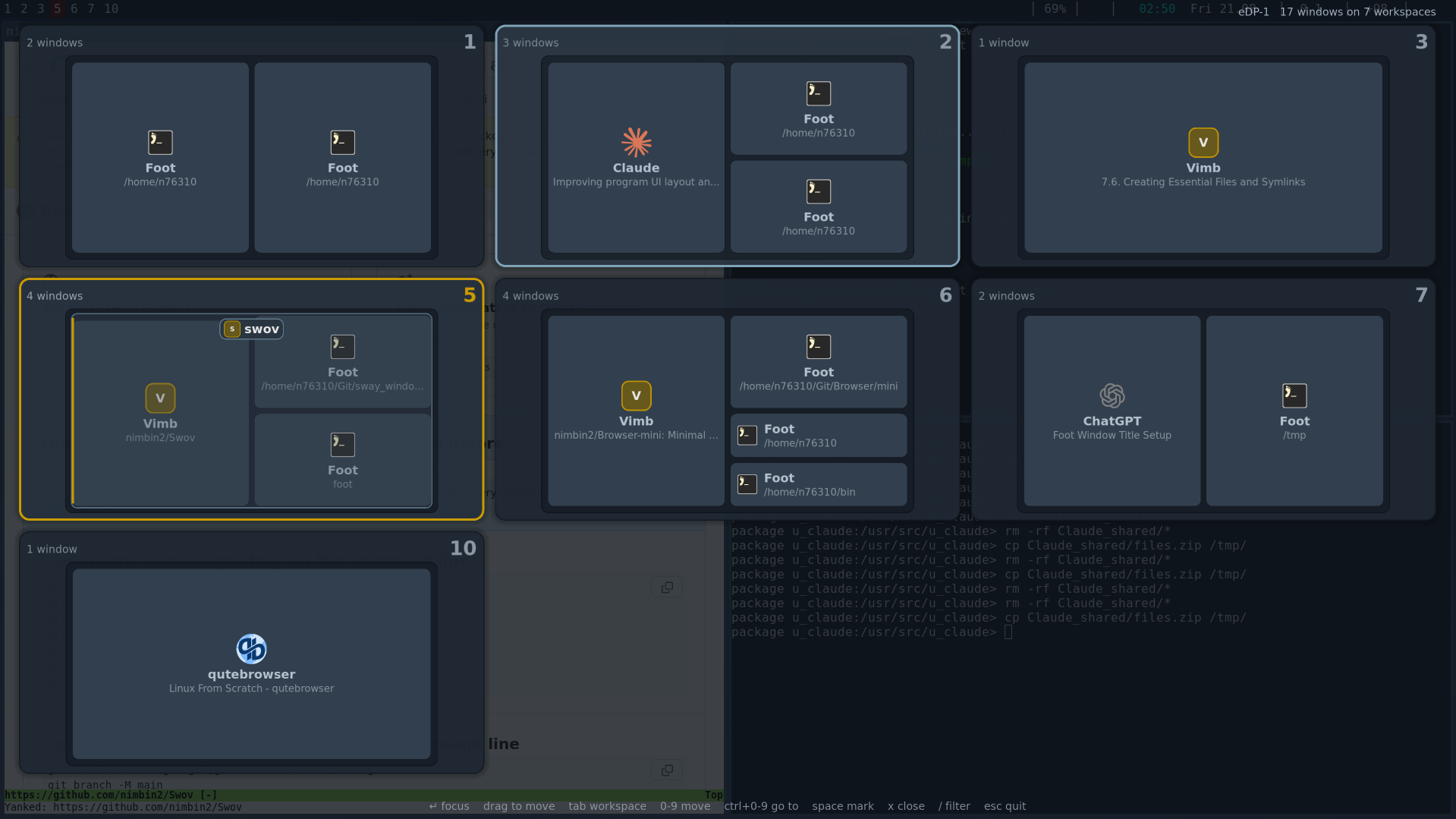
100% vibecode, but tested.
Build
Debian trixie and newer:
sudo apt install build-essential pkg-config libsdl3-dev libsdl3-image-dev libsdl3-ttf-dev
make
sudo make install     # /usr/bin, examples in /usr/share/swov
make config           # optional: config.example -> ~/.config/swov/config
make link             # or: config -> the installed example, kept in sync
make debug builds swov-debug with the address and UB sanitizers.
On bookworm the SDL3 packages do not exist yet; build SDL, SDL_image and
SDL_ttf 3.2+ from source and set PKG_CONFIG_PATH.
Needs a running sway session ($SWAYSOCK) and any TTF font.
Use
bindsym $mod+Tab exec swov
for_window [app_id="swov"] floating enable, border none
Without that for_window line swov opens as an ordinary tile, which rearranges
the layout it is meant to be showing you. It also asks sway for the keyboard
itself once it is up (focus_self=1), since an overlay that is not focused
does nothing at all — every key goes to whatever is underneath it.
| key | action |
|---|---|
0–9 | switch to that workspace, empty or not |
ctrl+0–9 | move the selection there |
arrows, hjkl | move the selection; it walks through tile borders and wraps around the grid |
tab / shift+tab | the app you were in before this one, then the one before that (tab=workspace walks workspaces instead) |
ctrl+tab (+shift) | one row down / up in the grid |
w | window selection ⇄ whole-workspace selection |
enter, click | focus |
space, right click | mark or unmark a window; with no window picked, the workspace itself |
shift+space, a | mark or unmark every window in the workspace |
c | clear all marks |
d | open the launcher (swas) and step aside |
x, del | close marked or selected windows, enter confirms |
| middle click | close that window straight away |
f | find windows by title, app id or workspace name; the best hit is selected, nothing is while nothing matches |
/ | filter: same search, but hides everything else |
r | reload |
esc | cancel a drag, else quit |
Mouse and keyboard share one cursor: pointing at a window selects it, so
space, x, ctrl+digit and the rest act on whatever is under the pointer.
Click the pencil at the right end of a workspace header to rename it; enter
keeps it, esc drops it. The rest of the header selects and drags like the
tile. The name is what f and / search, next to app ids and titles.
swov opens with the current workspace selected as a whole, no window picked.
Orange is only ever the selection cursor; the workspace sway is showing and the
window it has focused are marked in teal (current), search hits in violet
(match).
Drag and drop
Press, move, release. Esc cancels.
A floating or fullscreen window is grabbed by its name plate — the rest of it is click-through, so the windows underneath stay selectable.
The window on the pointer keeps its place in the grid while you drag it, sunk halfway into the background with an accent border — the only thing on screen wearing that colour, so there is no forgetting which one you picked up.
A floating window is drawn see-through and answers the pointer only through its name plate, so the windows underneath stay reachable. Touch that plate and it comes forward — solid, framed in accent with a soft halo around it, and taking the whole of itself — so its edges can be aimed at and an app dropped inside it. It is given up when the pointer leaves its card, and for one that covers the whole workspace, in a band around the edge of the tile, since otherwise there would be no way back out.
What you typed is nearly always the start of a window's title, so a title that begins with it wins outright; then a title containing it, then the application, then the workspace it sits on. Ties go alphabetically, so the same query always lands on the same window. Pressing enter on a query that found nothing flashes the field rather than acting on whatever was selected before.
A floating window is being moved, not filed away, so passing over other
windows on the way somewhere does not tile it: it lands on that workspace and
stays floating. Hold still over one for snap_ms (1 s) and it snaps into
the layout beside it instead — the card fills up while you wait, and the edge
bar appears when it is ready. Moving the pointer starts the wait again, so it
takes a deliberate pause rather than a slow pass. Once it has snapped, moving
about picks which edge; the decision has been made. snap_ms=0 goes back to tiling immediately.
A tiled window has no such doubt and snaps at once, as before.
A window onto a tile moves it there. Onto the left or right edge of another window it lands beside it, splitting horizontally; top or bottom splits vertically. A bar shows the edge before you let go.
Against the edge of the tile itself it lands beside everything on that workspace, not beside whichever window is nearest. Two windows stacked one above the other are a column, and left of the column is a different place from left of its top window — the bar spans the whole edge to say which one you are getting. Where the windows already sit side by side the two are the same thing, so swov works that out from the layout and only breaks out of a stack when there is one.
A workspace (grab the header strip) onto another swaps the two. Onto the left or right quarter of another it inserts there, pushing the occupied run up by one.
ws_slots=1-10, the default, gives those numbers a tile whether or not sway has the
workspace yet, so the grid is the same shape every time you open it. It also
brings in every screen's workspaces, since a fixed set of numbers only makes
sense if the workspaces behind them are real wherever they live — otherwise
the ones on another monitor would be numbered placeholders with no windows in
them. While
something is being dragged it reaches one further either side — that is how
you drop onto 0, or onto 11. The ones that live on another monitor are shown in
full — their windows, their titles, their icons — but washed out to about
half strength, so a glance is enough to know they are not here. Their tile
also carries that monitor's colour.
Clicking an empty number goes there, and sway creates the workspace on the
way — that is what ws_slots=1-10 is for: ten numbers you can always reach,
whether or not anything is on them. The hit test only knows about workspaces
sway already has, so the slot is asked directly. ghost_click=0 makes them
drop targets only.
Ghost slots are the free numbers 0–10. They come out for a drag from swas as
well as for one inside swov, so dropping an app on a workspace that does not
exist yet works the same either way. drop_ghosts=0 keeps them out of a swas
drag, at the cost of not being able to make a workspace that way — they do add
tiles to the grid, and the real ones shrink to fit. They appear when a workspace drag
starts, or when a dragged window leaves its own workspace, and the tiles glide
aside to make room. Drop on one to give a workspace that number, or to create a
workspace from a single window.
Without opening the overview
swov -g 3        # switch to workspace 3 and exit
swov -g 3:code   # by name works too
swov -b          # back to the last workspace you used *on this monitor*
Both talk to the IPC socket and quit — no window, no font, about 5 ms. Good for keybindings.
-b goes to the workspace activated most recently that is not the current one.
It switches by number, so a workspace renamed since is still the same
workspace, and every swov run first checks where sway actually is — workspaces
you reached with a sway keybinding count too. Press it twice and you are back
where you started.
With two monitors that means stepping to the other screen and pressing -b
brings you back to the workspace you left there. Set back=output if you would
rather stay on the monitor you are on and walk its own history, or back=sway
for sway's back_and_forth. sway's is also the fallback when there is no
history yet.
For other programs
swov --workspaces        # num, name, output, flags — one per line, tab separated
swov --adopt PID 3       # wait for the window PID opens, then move it to 3
swov --adopt PID 3 --beside 42 --edge left   # next to that window
Neither opens a window. --workspaces is how a launcher learns where an app
could go; --adopt is how it gets there. sway has no "run this on workspace
N", so swov watches the tree until a view belonging to that process (or to
anything it started) appears, then moves it — no switching there and back, no
flicker. It goes into the background at once, gives up after 20 seconds
(--adopt-timeout), and with --adopt-focus also switches to the workspace.
swov --backdrop # the overview behind someone else's windowSame overview, no input of its own, fading in from nothing so a window in
front of it never flickers. It reads hover FX FY, drag on|off, fade
in|out, raise APP_ID and quit on stdin, one line at a time, and answers a
hover with the workspace under that point — plus current when that is the
one you are on. raise exists because on Wayland the window that spawned the
backdrop cannot lift itself back over it, and swov is talking to sway anyway. Coordinates are fractions of the screen, so the
program in front needs to know nothing about monitors. When stdin closes it
fades out and leaves.
blur=0..3 softens it while it sits behind something, so the window in front
stays the thing you are looking at. It sharpens by itself the moment a drag
starts and softens again when the drag ends, which is when you actually need
to read the workspace you are aiming at. It costs three scaled blits of a
frame that is already drawn, and swov only repaints on change, so an idle
backdrop costs nothing at all.
It uses its own app id, so give it a rule or it steals the keyboard:
no_focus [app_id="swov-backdrop"]
for_window [app_id="swov-backdrop"] floating enable, border none
no_focus takes the criteria itself. for_window [...] no_focus is not the
same thing and does nothing at all.
--backdrop-debug is the same mode with the conversation echoed to stderr.
Before it waits for anything, --adopt tells sway where that window belongs:
assign [pid=1234] workspace number 3sway reads assign rules while it is deciding which workspace a new view goes
to, before the container exists anywhere, so the window never appears on the
workspace you are looking at and nothing there is rearranged.
One rule is often not enough: a launcher, a wrapper script or an app that
forks and lets the parent go leaves the window belonging to a pid nobody told
us about. So for the first four seconds swov keeps sweeping /proc for
processes descending from the one it started and puts a rule in front of each,
up to two dozen.
Moving the window afterwards is the fallback for when none of them matched,
and it floats the window before moving it: a tiled window leaving a workspace
makes everything left behind reflow, and that is the flash the rules are there
to avoid. --no-assign leaves the whole mechanism out. The rules outlive the
app — sway has no unassign — but each names one pid, so it does nothing once
that process is gone.
The pid is a hint, not a rule: a launcher, a wrapper script or an app that
re-execs leaves a window whose parent chain no longer leads back to the
process that was started. So swov also watches for a view that simply was not
there before, and takes that. --beside places the new window next to an
existing one with the same three sway commands a drag inside swov uses, and
--adopt-debug narrates the whole thing to stderr.
swas uses all three: overview=1 puts swov behind the wheel, dragging an
app asks it where the pointer is — including which side of which window — and
dropping starts the app exactly there.
More than one monitor
With a second screen attached, the bottom left holds a small map of the
monitors, laid out the way sway has them arranged, each with its name inside.
It has that place to itself — the tiles are laid out in what is left over — so
it is in the same spot whichever screen you are looking at, and it never
collides with anything. outputs_map_w is how wide it is as a share of the
tile area (0.18 by default), outputs_map=0 turns it off.
Each monitor wears the same colour as its workspaces do while dragging, so the map and the grid agree about which screen is which. One border each: how strongly a plate is filled says which screen is being shown, and a dot in its corner says which one sway is actually on.
Click a monitor and the overview shows its workspaces instead. Drag a workspace onto one and it moves to that screen whole — and if several workspaces are marked, all of them go, keeping their layouts. Drag a window onto one and it goes to whatever workspace is showing there.
Drag a monitor itself onto another and it is repositioned against the side
you drop on: a bar shows which edge, and sway is told the absolute position
that puts it there. output "eDP-1" position 1920 -1080 for above a screen
that starts at 1920,0, and so on. The one you
are looking at is filled in, the one sway is really on keeps a ring, and while
those differ the whole overview is framed in that monitor's colour — the same
one its workspaces and its plate wear — with viewing DP-1 in the header on a
solid badge of it — everything
you do from there, every key and every drop, lands on that screen. Clicking
the one you are already looking at goes back to following sway.
While anything is being dragged, the workspaces of your other screens
appear alongside this one's, each wearing its monitor's colour — the tile is
tinted with it, the border is it, and the output name sits in a filled badge
of it where the workspace name usually goes. The colours are the accent turned
around the wheel by the golden angle, one step per screen, so two monitors
never look alike and none of them lands on hl — that one already means "this
is where you are" — so a window or an app goes straight onto workspace 8 on the
other monitor without changing what you are looking at. drop_outputs=0
keeps them out.
Holding a drag over a monitor in the map switches to that one after
map_dwell_ms, which is off by default now that the workspaces come to you — an app coming from swas, a window, or a whole workspace. The press
has to be still: any movement starts the wait again, so brushing past a plate
on the way somewhere else never triggers it. A window carries on being
dragged across the change, so it can be dropped on the screen you arrive at,
and a launcher is told the target is void at the moment of the switch — the
drag is still in the air, nothing was let go of. The plate presses in and
fills as you hold, so the wait reads as a button going down; moving off before
it completes cancels. That way a drag that started on one screen can finish on
another.
swov output=DP-1 starts on a given screen.
Tiles glide when the grid changes, but never on the way in. Opening swov lays the grid out several times over — with the model half-built, again once the fonts are in, again when sway gives the window its real size, again for the events its own focus request provokes — and any of those counted as "where the tiles were a moment ago". Nothing animates in the first half second, so the first thing you see is simply in place.
swov's own window is on the workspace like anything else, so it is drawn — leaving a hole where it sits would be worse — but it is never selectable, droppable or in the way.
While something is being dragged, a ✕ bar runs along the bottom from the monitor map to the right edge. Dragging downwards is enough to reach it — no aiming, no corner to find — and letting go there does nothing at all. Letting go there does nothing at all — the same as dropping it back where it came from, but without having to find that spot again.
swas is started with two pipes and told to talk to this overview rather
than bringing up its own, so the wheel appears in front and this window stays
where it is. Pick an app, drop it, and the wheel closes again — the overview
is still there, on the same screen, with the same selection. launcher=
changes the command; the whole thing is one argument, so it needs quoting on
a shell: swov 'launcher=swas --replace overview=1'. It is the default, so
pressing d works without setting anything.
Over a fullscreen window
A fullscreen window sits above everything an ordinary window can reach, so an
overlay that is not on the layer shell cannot be drawn over it. swov takes it
off fullscreen while it is up and puts it back exactly as it was on the way
out. over_fullscreen=0 leaves it alone, and swov opens behind it.
Last used
tab=recent (the default) makes tab walk windows in the order they were last
focused, so one press lands on what you were in before this — what the key
means everywhere else. shift+tab goes the other way, and ctrl+tab still
moves a row in the grid.
swov opens and closes in a moment, so it cannot watch focus itself. swbr is
running all day and does: it keeps the last thirty-two windows in
$XDG_RUNTIME_DIR/swbr-focus, most recent first, and swov reads that when it
starts. Without swbr there is no order to walk, so tab quietly falls back to
stepping through workspaces — which is also what tab=workspace does.
Every card carries its pid in the top right corner, in smaller type, a step
quieter than the subtitle beneath it — the one thing about a window you cannot read off the
title, and the thing you want when something has to be killed or traced.
show_pid=0 turns it off.
Workspace usage
Every switch goes through swov, so it stamps the time as it goes: the workspace
you leave is credited with the seconds since the last switch, and the new one is
noted in ~/.cache/swov/usage. No background process.
The overview draws it as a dot scale down the left edge of each tile — fourteen dots filling from the bottom, relative to the busiest workspace — and prints the time next to the window count. A workspace that falls empty is forgotten and starts from zero.
--timing prints how long each part of startup took, to stderr, if one ever
feels slow:
swov: sway socket    0.1 ms   (  0.1 total)
swov: SDL_Init       1.8 ms   (  1.9 total)
swov: font lookup  114.0 ms   (123.6 total)   <- fc-match, once per font
The answer fc-match gives never changes between runs, so it is kept in
~/.cache/swov/fonts and the second run onwards costs nothing. Deleting that
file makes swov ask again.
swov --usage     # where you are, and how long each workspace has had you
swov --info      # every path and setting in use: binary, config, usage file,
                 # sway socket, fonts, icon theme, colours
track=0 in the config turns the recording off.
Load per workspace
The numbers are re-read while the overview is open, so a build starting after
you opened it shows up. A second dot scale down the right edge of each tile says how busy that
workspace is, mirroring the usage dots on the left: the same shape in a
different colour, one for the time you have spent there and one for the work
happening there now. The scale is in cores — one core kept busy is 1.0, and cpu_full=4 fills
it. Anything alive but below the scale gets one faint dot, so a workspace that
is doing something never looks asleep, while a terminal at a prompt stays
blank. It stays teal until a workspace is really pinned, and only then tips
towards red. swbr measures it — a rate needs two samples
seconds apart and swov is only on screen for a moment — and leaves the answer
in $XDG_RUNTIME_DIR/swbr-cpu. Without swbr running the file is stale or
missing and nothing is drawn. cpu=0 turns it off.
Config
${XDG_CONFIG_HOME:-~/.config}/swov/config, key=value, # comments. Every
key is also a command line option:
swov ui_scale=1.2 hl=ff8800
swov --ssaa=1 --header_pos=top-left
swov --shot /tmp/o.png     # one frame to a PNG, for tuning colours
Colours and fonts can also be set once for swov, swas and swbr together in
${XDG_CONFIG_HOME:-~/.config}/sw/config, using role names (surface,
accent, hl, ...) that each program maps onto its own keys. sw_theme.h
lists them. The file above is read after it, so swov's own config always wins.
config.example lists everything with defaults. The ones worth knowing:
| key | |
|---|---|
ui_scale | scales all text at once |
ssaa | supersampling 1–4; drops to 1 by itself on very large screens |
bg | the scrim over the desktop; 0d111700 for none |
float_alpha | how see-through floating and fullscreen windows are |
win_gap, screen_pad | space between windows, and around them |
header_pos, hints_pos | none, or top/bottom + left/center/right |
anim_ms | tile glide duration, and the backdrop fade; 0 disables |
blur | how soft --backdrop is drawn, 0–3 |
drop_ghosts | offer the free numbers while an app is dragged over the backdrop |
cpu, cpu_min, cpu_full | the load dot, and the range it covers |
ws_slots | numbers that always have a tile, 1-10; 0 for only what exists |
outputs_map, outputs_map_w, output | the monitor map, its width, and which screen to start on |
drop_outputs | show the other screens' workspaces while dragging |
over_fullscreen | un-fullscreen whatever is in the way, and restore it on exit |
snap_ms | hold a floating window over another this long to tile it; 0 = at once |
focus_self | ask sway for the keyboard after mapping |
show_pid | the process id on every card |
ghost_click | clicking an empty number switches to it; on by default |
rename_icon | the pencil that renames; 0 = the middle of the name instead |
map_dwell_ms | hold a drag over a monitor this long to switch to it; 0 is off |
launcher | what d opens; swas --replace overview=1 by default |
tab | recent walks the last used apps, workspace walks workspaces |
cancel_drop | the ✕ beside the monitor map: let a drag go there and nothing happens |
track, usage_dots, dot_count, dot_px | usage recording and its dot scale |
start_selection | workspace, none or window |
cols, rows | force the grid; default picks the largest tiles |
make install also drops the shipped examples in /usr/share/swov/.
make link points your config at one of them, so the next install is the
config you are running — handy if you want to follow the examples rather than
keep your own copy. Edits you make there are overwritten on install.
Notes
- Talks to the sway IPC socket directly: no
swaymsg, nojq, no/bin/sh. - Subscribes to sway's events, so a reload waits for sway to finish a move
- Windows whose
app_idsays nothing (GTK Applicationand friends) are named - Repaints only on change; an idle overlay costs nothing.
- Reordering workspaces renames them, which is all sway offers. Swaps go through
- Scratchpad windows are not shown.
- The overlay opens on the focused output, found by matching sway's output
- Tabbed and stacked containers are drawn the way sway draws them: a tab strip
- Only the name plate of a floating or fullscreen window takes the mouse; clicks
instead of reading a half-applied tree.
from /proc/<pid>/cmdline and the window title.
a temporary name.
geometry against the display list — SDL often reports a monitor model where sway reports the connector, so names alone are not enough.
across the top, the visible window's contents below. Each tab is clickable.
on its body go to whatever is beneath it.